

Create AI Music Visualizers with Claude, ChatGPT, or Gemini

An audio-reactive, Bridget-Riley-inspired visualizer running in Visibox
If you've got a Claude, ChatGPT, or Gemini subscription, you've also got a personal shader programmer for your live, audio-reactive visuals. Connect your AI assistant to Visibox once, then describe the visual you want in plain language. The AI writes the shader, Visibox shows it live, and you iterate until it looks the way you hear it.
No GLSL. No command line. No build step. No coding.
What you'll need
- Visibox 5.0 or later
- An AI assistant that speaks the Model Context Protocol, such as:
- Claude Desktop or Claude Code (Anthropic)
- Codex (the OpenAI desktop app that comes with ChatGPT Plus, Pro, Team, and Enterprise)
- Gemini CLI (Google)
- Cursor, VS Code, Zed, Windsurf, or Cline
Connect once
Make sure Visibox is running, so the AI assistant can connect.
Then open Settings → Connect to AI Tools… (under the Visibox menu on macOS, the File menu on Windows). Visibox scans for installed AI tools and auto‑installs itself into each one. Restart your AI app, and you're connected.
Full setup: manual.spaceage.tv/5.0.0/integrations/ai.
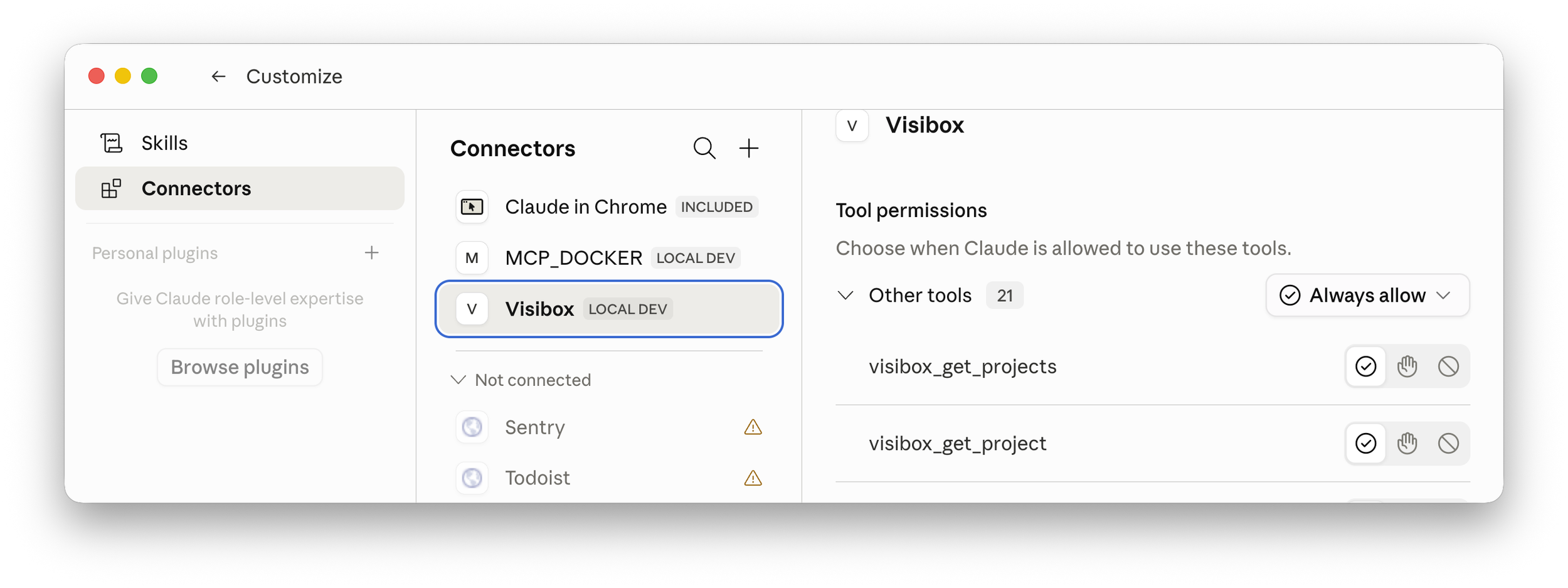
Claude Desktop’s Settings showing Visibox under “Connectors”
A recipe: audio-reactive op-art visualizer
Op‑art is a great place to start because it's geometric, high‑contrast, and ISF shaders are genuinely good at it. Bridget Riley, Victor Vasarely, moiré, concentric rings. We'll start in pure black and white because it reads instantly, then bring color in on Prompt 3. ISF handles full color, gradients, and anything else a fragment shader can draw. The look of any preset comes from what you ask for, not from any limit in the format.
Open the Visualizers Editor in Visibox before you send your first prompt. As the AI writes the shader, you'll see the code fill in and the live preview update in real time. That feedback loop is what makes this fun.
Prompt 1: Create
"Connect to Visibox and create a new ISF visualizer inspired by Bridget Riley's op‑art. Concentric high‑contrast rings on a black background that pulse outward with the bass. Pure black and white, no color."
The AI should connect to Visibox's MCP server, pick the visualizer engine (ISF), generate a fragment shader, register the audio input, and add it to your project. This may take several minutes to complete as the assistant churns away.
Now a new preset will appear under "My Visualizers" in the Visualizers window (Mac: Visibox > Visualizers... or Windows: File > Visualizers...). Visibox has a built-in song you can play to audition your presets as you're creating them. Press the "play" button that overlays the Preview to start it. You can also play any audio contained in any of your open projects.
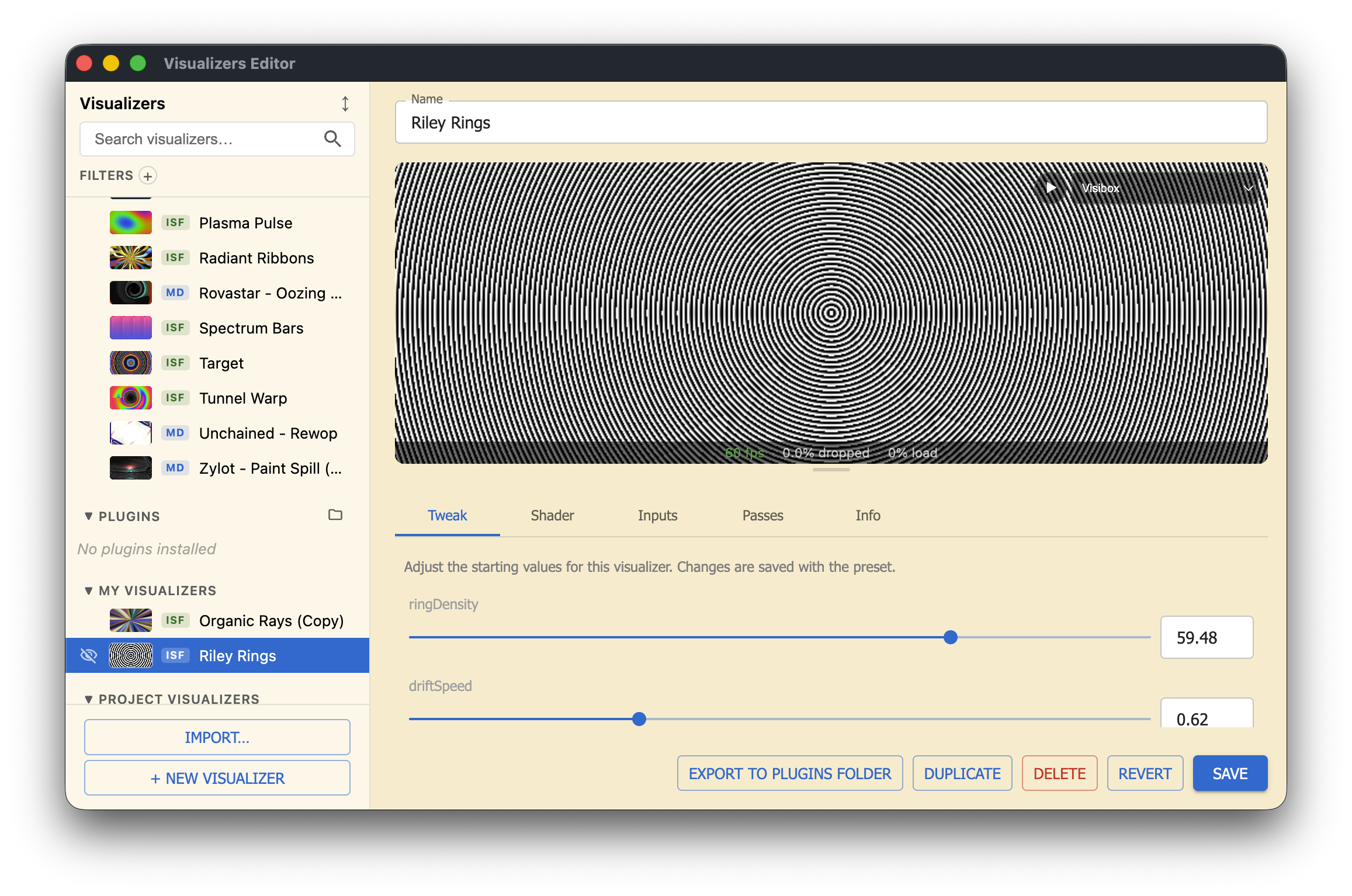
Visibox’s Visualizers Editor Window
Prompt 2: Iterate
My first iteration didn't react to audio at all. Telling the AI exactly that ("it doesn't seem to be reacting to audio at all") was enough to fix it. When something isn't right, describe what you're seeing and let the AI try again.
"Add a slow clockwise rotation. Make the rings warp into a moiré ripple when the highs spike."
Prompt 3: Restyle
"Now warm it up. Amber rings on deep black, with a soft glow around the innermost ring."
Each prompt rewrites the shader. The editor updates. The visualizer keeps reacting to whatever's playing. When you like what you see, save it to your library, drop it into a Song, and it's yours for the next show.
More Prompt Suggestions
"Let's make a duplicate of this preset and experiment with color."
"I want this to feel more organic. Add adjustable layers of blur, grit, and chromatic aberation."
"What else can we do to this preset to make it more interesting?"
Or attach an image to your chat and ask:
"Let's use this image as inspiration for a new Visibox visualizer. What would you suggest based on what you're seeing here?"
Why ISF is the sweet spot
ISF is just a fragment shader with a small JSON header that declares its inputs. Audio is built in: audio for the waveform, audioFFT for the frequency spectrum. AI models know GLSL well, the audio inputs are standardized, and the shader is one self‑contained file. That's a near‑ideal target for prompt‑driven generation. MilkDrop also works, but takes more nudging.
Try this next
Same setup, different prompt. Five to get you started:
- Kaleidoscope mandala that opens like a flower on the beat
- Retro CRT scan‑lines with chromatic aberration on bass hits
- Audio‑reactive Lissajous curve trailing across the screen
- Geometric tessellation that subdivides on transient peaks
- Lava‑lamp blob field that morphs with the mids
Specificity helps. "Slow, hypnotic, mostly dark, single accent color" gets you a different shader than "fast, glitchy, neon, full chaos." Tell the AI what mood you want, not just the geometry.
The point
Most VJ software wants you to pick from a preset library. Visibox lets you describe a visual and have it built on the spot, in the editor, while you watch. With an AI subscription you already pay for and a one‑time setup, your visualizer library stops being a list of someone else's ideas and starts being a list of yours.
Connect once at Settings → Connect to AI Tools…, then ask for what you want to see.
Want to control more than just visualizers? The same connection lets your AI build effects, arrange songs, swap clips, and run your show in plain English. See AI Assistants in the Visibox manual for the full picture.